Advertisements
Monitor Placement for Eye and Neck Strain: What I Wish I’d Known Years Ago
Here’s a stat that kinda blew my mind — nearly 1.7 billion people worldwide suffer from musculoskeletal conditions, and a huge chunk of that is tied to poor workstation setup. I spent the better part of three years dealing with brutal neck pain and eye fatigue before I finally figured out that my monitor placement was the culprit. Honestly, it was embarrassing how long it took me to connect the dots!
If you spend hours staring at a screen every day, getting your monitor position right isn’t just a nice-to-have. It’s essential for your long-term health. So let me walk you through everything I’ve learned — mostly the hard way.
Why Your Monitor Height Matters More Than You Think
For years, my monitor was sitting on top of a stack of old textbooks. I’m a teacher, so I had plenty of them lying around. I thought I was being clever, but the screen was actually way too high, and I was tilting my head back slightly for eight hours a day.
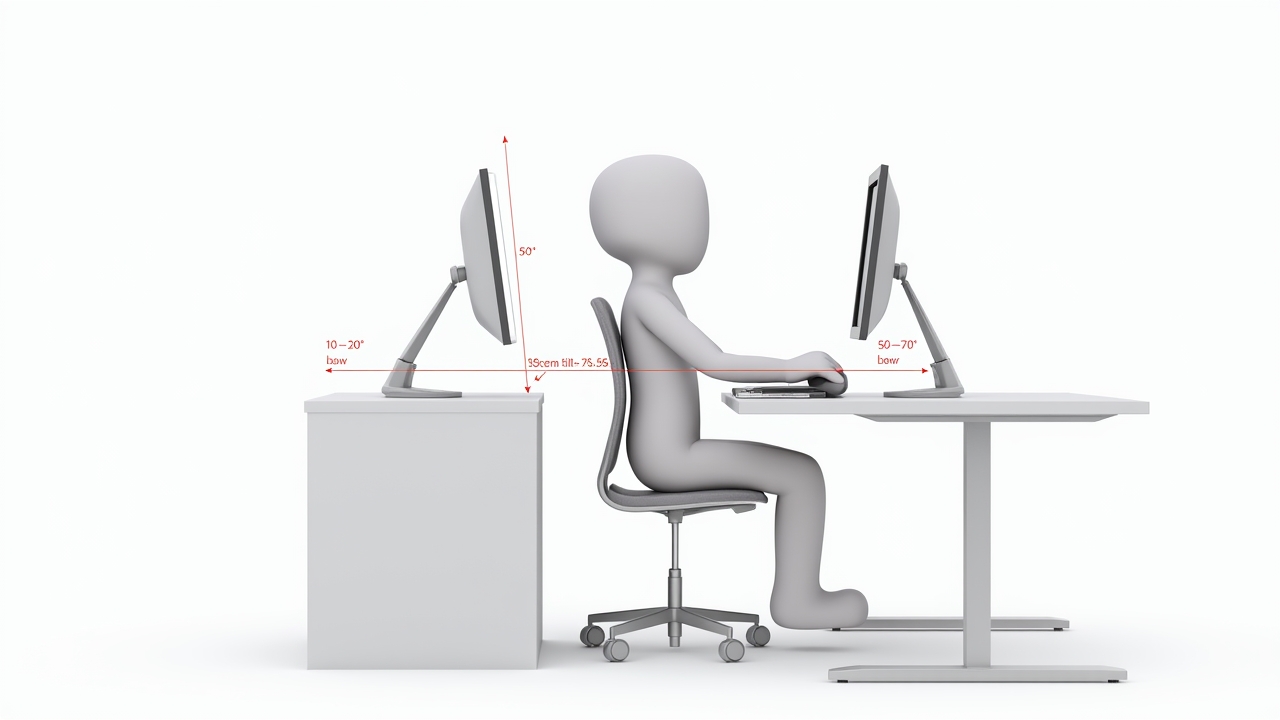
The ideal monitor height puts the top of your screen at or just slightly below your eye level. This means your eyes naturally gaze downward at about a 15 to 20 degree angle, which is where they’re most comfortable. When your screen is too high or too low, your neck compensates by tilting, and that’s when the cervical spine strain kicks in.
Advertisements
I remember the day I finally got a proper monitor arm and adjusted everything to the right height. Within a week, the tension headaches I’d been having almost daily just… stopped. It felt like a small miracle, to be honest.
Distance From Your Screen: The Sweet Spot
This one tripped me up too. I used to sit super close to my monitor because I thought it helped me focus. Turns out I was basically begging for digital eye strain.
The general rule is to position your monitor about an arm’s length away — roughly 20 to 26 inches from your face. If you’re using a larger screen, like a 27-inch or 32-inch display, you might want to push it back a few more inches. Your eyes shouldn’t have to work overtime to scan across the whole display.
And here’s a little tangent — if you wear progressive lenses or bifocals like some of my colleagues do, monitor distance becomes even more critical. You might find yourself tilting your head into weird positions just to see through the right part of your lenses. A slightly lower screen placement can help with that.
Tilt and Angle: The Details Nobody Talks About
Most people get the height somewhat right but completely ignore the tilt of their monitor. Your screen should be tilted back about 10 to 20 degrees so it’s perpendicular to your natural line of sight. This reduces glare and keeps your neck in a neutral position.
I also learned that screen glare is a sneaky contributor to eye strain. If your monitor is near a window or under harsh overhead lighting, you’ll unconsciously squint or lean forward. Moving my desk so the window was to my side instead of behind me was a total game changer.
The 20-20-20 Rule Saved My Eyes
Even with perfect monitor placement, you gotta give your eyes breaks. The 20-20-20 rule recommended by the American Academy of Ophthalmology is simple — every 20 minutes, look at something 20 feet away for 20 seconds.
I’ll be real, I was terrible at remembering this at first. So I set a little timer on my phone. It felt silly, but my eyes were noticeably less fatigued by the end of the workday. Sometimes the simplest fixes are the ones that work best.
Quick Checklist for Proper Monitor Setup
- Top of the screen at or slightly below eye level
- Monitor about 20–26 inches from your face
- Screen tilted back 10–20 degrees
- No direct light source behind or in front of the screen
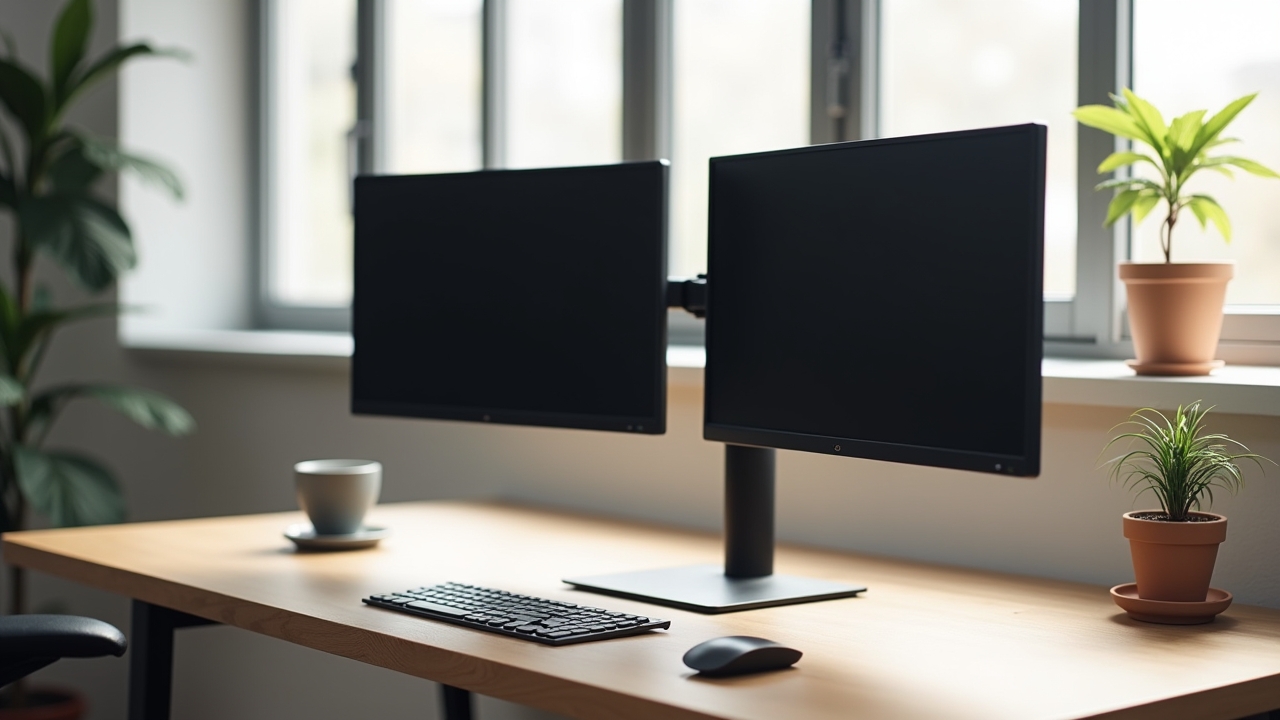
- Use a monitor arm or adjustable stand for flexibility
Your Neck and Eyes Will Thank You Later
Look, adjusting your monitor placement isn’t glamorous. But it’s one of those small changes that compounds over time and can save you from chronic pain and expensive doctor visits. Everyone’s body is a little different, so don’t be afraid to experiment until you find what feels right for you.
If you found this helpful, check out more posts on the Ergonomic Flow blog for practical tips on building a workspace that actually works with your body — not against it.